> For the complete documentation index, see [llms.txt](https://yourpropfirm.gitbook.io/yourpropfirm-docs/llms.txt). Markdown versions of documentation pages are available by appending `.md` to page URLs; this page is available as [Markdown](https://yourpropfirm.gitbook.io/yourpropfirm-docs/integration/subscription-integration.md).
# Subscription Integration
The subscription system manages the complete lifecycle of user subscriptions, from initial registration through renewals, cancellations, and reactivations. Each subscription is identified by a unique subscription ID that persists across the account progression, enabling consistent tracking and management even when subscriptions are renewed through multiple orders.
## Initial Subscription Registration
When a user purchases a subscription product, the following process occurs:
1. User selects a subscription product in the checkout system
2. Upon order completion, the webhook triggers a request to the [Create New User API](https://hypestacksypf.stoplight.io/docs/yourpropfirm-client-api/branches/main/95d0c10a60781-create-new-user) with subscription information
3. Account is registered as a subscription account with the subscription ID as the subscription cluster identifier
4. Each account progression is associated with one subscription ID, though multiple orders may exist due to subscription renewals
## Renew Subscription Flow
Users can renew their subscriptions through the YPF SaaS Plugin, which redirects them to the checkout system to complete payment.
Upon successful payment, the subscription information is updated in the dashboard and the user is returned to their subscription details page.
1. User requests subscription renewal via a button in the dashboard
2. YPF SaaS Dashboard sends Subscription ID for renewal
3. System redirects user to checkout page with product ID
4. User purchases the renewal product
5. System redirects user to PSP to make payment
6. **If payment successful (Yes):**
1. Plugin sends updated subscription info to dashboard via [Renew Subscription API](#renew-subscription-api)
2. System redirects user to subscription details page
3. Process ends
7. **If payment fails (No):**
1. Show "Payment Failed" message
2. System redirects back to subscription details page
### Renew Subscription API
**Method**: `POST`
**Description**: Renew an active subscription.
**Authentication**: Tenant API Key
**Endpoint**:
```
POST {baseUrl}/client/v1/subscriptions/{subscriptionId}/renew
```
**Request Body**:
| Key | Type |
| ----------------------- | --------------------------------------------------------------- |
| renewalDate | Datetime |
| subscriptionPaymentType | String (`null` means no update, `ManualRenew`, and `AutoDebit`) |
**Sample Request**:
```json
{
"renewalDate": "2025-11-14T02:42:47.996Z",
"subscriptionPaymentType": "ManualRenew"
}
```
**Sample Responses**:
200 - Success
```json
{
"id": "68147ae23319a0251c254811",
"createdAt": "2025-05-02T07:57:22Z",
"updatedAt": "2025-05-02T07:57:24.1045885Z",
"programId": "67f5ea90eb16edcd17fe4183",
"programName": "Diana - Program Yen 2",
"state": "Pending",
"version": "MT4",
"tradeServer": null,
"login": "0",
"platformLogin": null,
"password": null,
"initialBalance": 500000,
"drawDown": 0,
"dailyDrawDown": 0,
"dailyDrawDownBase": 0,
"dailyDrawDownStamp": null,
"withdrawAmount": 0,
"dailyDrawDownBaseCalc": 0,
"maxDrawDown": 0,
"totalDrawDown": 0,
"highestEquity": 0,
"lowestEquity": 0,
"lastEquityHigh": 0,
"lastEquityLow": 0,
"balance": 500000,
"equity": 500000,
"currency": "JPY",
"disableReason": null,
"isLevelUpReached": false,
"commission": 0,
"isWithdrawalAllowed": false,
"isAutoWithdrawAll": false,
"firstTradeDate": null,
"tradingDays": 0,
"profitTradingDays": 0,
"withdrawProfitTradingDays": 0,
"isWithdrawEligible": false,
"maxAllowedAmount": null,
"activeDays": 0,
"withdrawRules": null,
"previousAccountId": null,
"previousLogin": null,
"invoiceId": "invoice123",
"productId": "product123",
"addOns": {
"profitSplit": 20,
"withdrawActiveDays": 30,
"withdrawTradingDays": 40
},
"profitSplit": 0,
"nextProgramName": null,
"upgradeRequestDate": null,
"highestEquityAt": "2025-05-02T07:57:24.1086363Z",
"income": 10,
"eligibleTrades": null,
"dailyHighestEquity": 0,
"dailyHighestEquityRecordedTime": null,
"trailingDailyDrawDown": 0,
"trailingDrawDown": 0,
"selfFundedAccount": null,
"isResetBefore": false,
"isTrailingProfitWithdraw": false,
"winRate": 0,
"avgTradesOpenDuration": null,
"profitFactor": 0,
"sharpeRatio": 0,
"totalTrades": 0,
"daysAccountAge": 0,
"averageRiskRewardRatio": 0,
"mostTradedSymbol": null,
"biggestLoss": 0,
"biggestGain": 0,
"profit": 0,
"unrealizedProfit": 0,
"objectives": null,
"subscriptionId": "subsciption123",
"subscriptionStartDate": "2025-05-02T04:55:16.513Z",
"subscriptionNextBilling": "2025-05-02T04:55:16.513Z"
}
```
## Cancel Subscription Flow
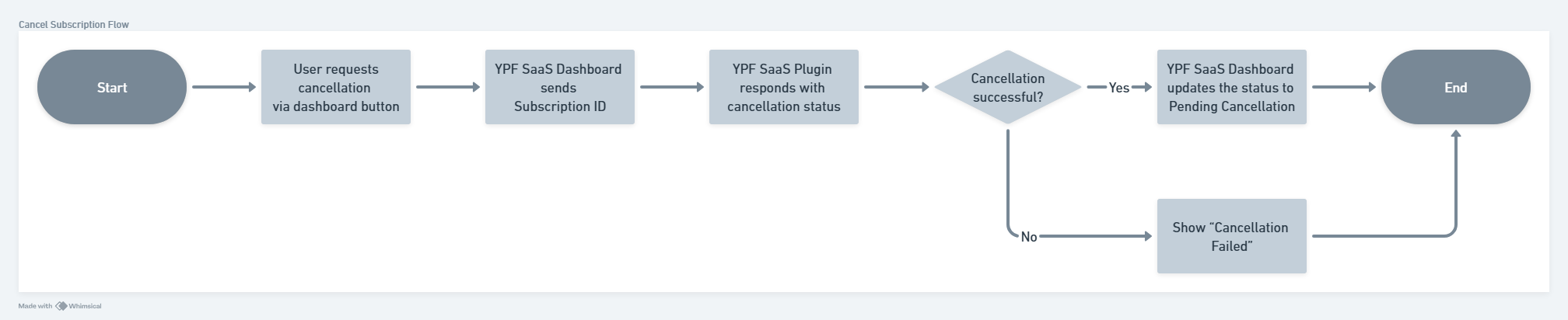
Users can request subscription cancellation through the YPF SaaS Plugin.
The dashboard communicates with the plugin to process the cancellation and updates the subscription status accordingly.
* User requests cancellation via a button in the dashboard.
* YPF SaaS Dashboard sends Subscription ID
* YPF SaaS Plugin responds with cancellation status
* **If cancellation successful (Yes):**
* YPF SaaS Dashboard updates status to Pending Cancellation
* Process ends
* **If cancellation fails (No):**
* Show "Cancellation Failed" message
* System redirects back to end
## Checkout API
This page documents the API endpoints that **prop firms must provide and integrate on their checkout side** in order to synchronize subscription events on the YourPropFirm Dashboard.
### Cancel Subscription
**Method**: `PUT`
**Description**: Cancels an active subscription.
**Authentication**: Basic Auth
* Username = `Consumer Key`
* Password = `Consumer Secret`
**Endpoint**:
```
PUT {baseUrl}/wc/v4/subscription/cancel
```
**Example**:
```
http://localhost/wp-json/wc/v4/subscriptions/cancel/?consumer_key=yyy&consumer_secret=xxx
```
#### JSON Payload
| Field | Type | Required | Description |
| ---------------- | -------------------- | -------------------- | ---------------------------- |
| subscription\_id | string | :white\_check\_mark: | ID of subscription to cancel |
| by | enum (admin \| user) | :white\_check\_mark: | Who initiated the cancel |
| note | string | :x: | Optional comment |
#### Sample Request
```json
{
"subscription_id": "STAGING-SUBS-123",
"by": "admin",
"note": "free text"
}
```
#### Sample Responses
**401 - Not authenticated**
```json
{
"code": "woocommerce_rest_cannot_edit",
"message": "Sorry, you are not allowed to edit this resource.",
"data": {
"status": 401
}
}
```
**404 - Subscription not found**
```json
{
"code": "invalid_subscription",
"message": "Subscription not found.",
"data": {
"status": 404
}
}
```
**404 - Order is not a subscription**
```json
{
"code": "not_subscription",
"message": "Order is not a subscription",
"data": {
"status": 404
}
}
```
**400 - Status not active**
```json
{
"code": "invalid_status",
"message": "Subscription status is not active.",
"data": {
"status": 400
}
}
```
**200 - Success**
```json
{
"success": true,
"message": "Subscription cancelled successfully.",
"subscription_id": "STAGING-SUBS-123",
"status": "cancel",
"note": "free text"
}
```
### Reactivate Subscription
**Method**: `PUT`
**Description**: Reactivates a subscription
**Authentication**: Basic Auth
**Endpoint**:
```
PUT {baseUrl}/wc/v4/subscriptions/reactivate
```
**Example**:
```
http://localhost/wp-json/wc/v4/subscriptions/reactivate/?consumer_key=yyy&consumer_secret=xxx
```
#### JSON Payload
| Field | Type | Required | Description |
| ---------------- | -------------------- | -------------------- | ---------------------------- |
| subscription\_id | string | :white\_check\_mark: | ID of subscription to cancel |
| by | enum (admin \| user) | :white\_check\_mark: | Who initiated the cancel |
| note | string | :x: | Optional comment |
#### Sample Request
```json
{
"subscription_id": "STAGING-SUBS-123",
"by": "admin",
"note": "free text"
}
```
#### Sample Responses
**401 - Not authenticated**
```json
{
"code": "woocommerce_rest_cannot_edit",
"message": "Sorry, you are not allowed to edit this resource.",
"data": {
"status": 401
}
}
```
**404 - Subscription not found**
```json
{
"code": "invalid_subscription",
"message": "Subscription not found.",
"data": {
"status": 404
}
}
```
**404 - Order is not a subscription**
```json
{
"code": "not_subscription",
"message": "Order is not a subscription",
"data": {
"status": 404
}
}
```
**400 - Status not active**
```json
{
"code": "invalid_status",
"message": "Subscription status is not active.",
"data": {
"status": 400
}
}
```
**200 - Success**
```json
{
"success": true,
"message": "Subscription cancelled successfully.",
"subscription_id": "STAGING-SUBS-123",
"status": "cancel",
"note": "free text"
}
```
## Dashboard API
To synchronize subscription purchases from the client’s checkout system (e.g. WordPress + WooCommerce) into the YourPropFirm Dashboard, the checkout must call the Subscription API provided by the YourPropFirm platform.
These APIs are used to transmit user and order data at the moment of purchase or subscription change. They ensure that the dashboard can create trader accounts, assign programs, track billing, and enforce subscription-based rules.
### Create New User API
This API is used when a new customer completes a checkout but does not yet exist in the YourPropFirm Dashboard.\
The checkout system must send the user profile details (name, email, country, etc.) to create a new trader identity in the dashboard before attaching any subscription or product.
**Purpose**:
* Register a new trader inside the YourPropFirm Dashboard
* Ensure that orders and subscriptions are linked to the correct user ID
**Method**: `POST`
**Description**: Creates a new trading account in the YourPropFirm Dashboard and automatically assigns it to the appropriate trading program based on the submitted order details.
**Authentication**: Basic Auth
* X-Client-Key = `Tenant Client Key`
**Endpoint**:
```
https://api.ypf.customers.sigma-ventures.cloud/client/v1/users
```
#### Sample Request
```json
{
"email": "user@example.com",
"firstname": "string",
"lastname": "string",
"programId": "string",
"language": "en-US",
"mtVersion": "MT4",
"commission": 0,
"invoiceId": "string",
"productId": "string",
"income": 0,
"isRegisterUserOnly": false,
"addOns": {
"profitSplit": -1.7976931348623157e+308,
"withdrawActiveDays": -9007199254740991,
"withdrawTradingDays": -9007199254740991
},
"subscriptionId": "string",
"subscriptionStartDate": "2019-08-24T14:15:22Z",
"subscriptionNextBilling": "2019-08-24T14:15:22Z",
"paymentType": "Manual Renew"
}
```
#### Sample Responses
**400 - Status not active**
```json
{
"type": "string",
"title": "string",
"status": 0,
"traceId": "string",
"errors": {
"property1": [
"string"
],
"property2": [
"string"
]
}
}
```
**200 - Success**
```json
{
"id": "string",
"createdAt": "2019-08-24T14:15:22Z",
"email": "user@example.com",
"language": "en-US",
"state": "Initialized",
"type": "Admin",
"profile": {
"addressLine": "string",
"city": "string",
"zipCode": "string",
"country": "string",
"phone": "string",
"firstName": "string",
"lastName": "string",
"avatarUrl": "string"
},
"kycStatus": "string",
"emailPreferences": "string",
"contractAgreement": "string",
"contractTimestamp": "string",
"lastAccessFrom": "string",
"requestKyc": true,
"accountId": "string",
"subscriptionId": "string",
"adminNote": "string",
"noteType": "string"
}
```
### Product Order API
This API is used after the user is created (or already exists) to send product purchase information for subscription programs.\
The checkout system sends subscription or product order details (plan, price, server group, order ID, status, etc.) to the dashboard.
**Purpose**:
* Register the purchased program or subscription in the dashboard
* Trigger account provisioning, rules assignment, and tracking
* Link the subscription lifecycle to the dashboard (renewals, status updates, cancellations)
**Method**: `POST`
**Description**: Creates a new trading account in the YourPropFirm Dashboard and automatically assigns it to the appropriate trading program based on the submitted order details.
**Authentication**: Basic Auth
* X-Client-Key = `Tenant Client Key`
**Endpoint**:
```
https://api.ypf.customers.sigma-ventures.cloud/client/v1/productorder
```
#### JSON Payload
| Field | Type | Required | Description |
| --------------- | --------------------------- | -------------------- | ------------------------------------------------ |
| orderId | string | :white\_check\_mark: | |
| userId | string | :white\_check\_mark: | |
| amount | double | :white\_check\_mark: | Amount of the completed order |
| currency | string | :white\_check\_mark: | ISO 4217 currency codes, for.e.g., USD, IDR, etc |
| productDetails | string | :white\_check\_mark: | ProductId, ProductName, Extras |
| paymentStatus | enum | :white\_check\_mark: |